

Why Does My Phone Speaker Sound Muffled? Causes and Fixes
Is your phone speaker muffled? Learn the common causes, how to troubleshoot blocked grilles and moisture, and how Fix My Speakers can help with certain speaker issues.
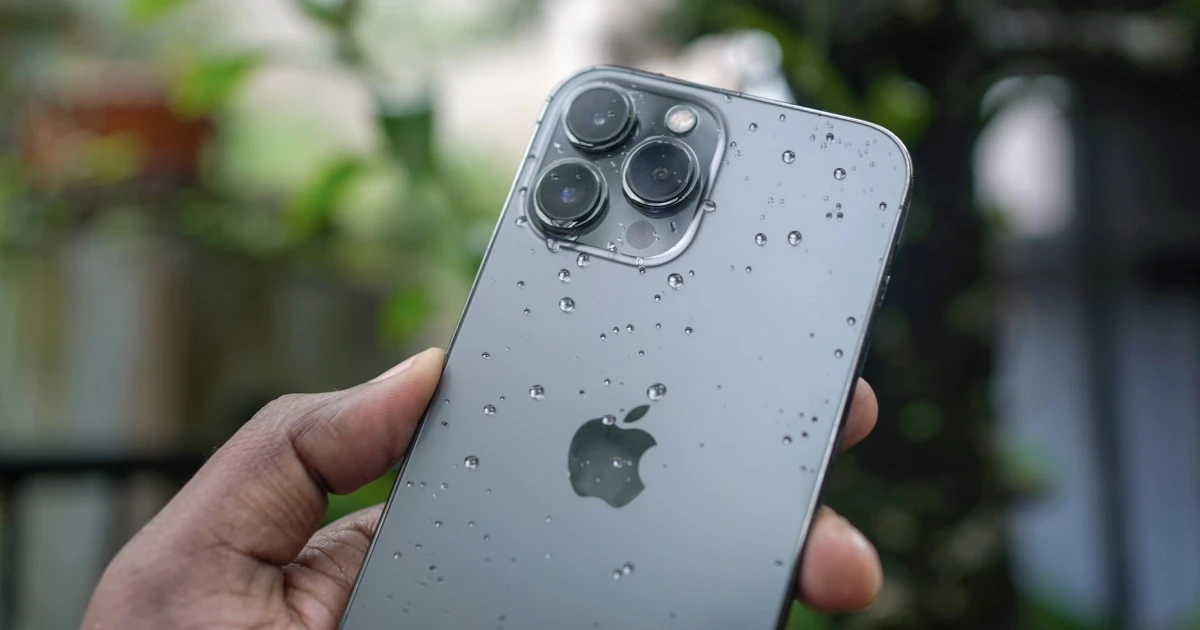
When a smartphone speaker suddenly sounds muffled, voice calls, music, and videos lose their high-frequency crispness and feel distant or muddy. While muffled audio often causes immediate concern over permanent hardware failure, it is frequently caused by simple external factors—such as trapped surface water, accumulated pocket lint, misaligned phone cases, or minor audio routing glitches.
Diagnosing why your phone speaker sounds muffled requires systematically inspecting physical blockages, testing audio channels, and using proper drying and cleaning techniques.
Why does your phone speaker sound muffled?
The primary causes behind muffled smartphone audio fall into five distinct categories:
- Surface Water Exposure: Raindrops, sweat, or accidental spills forming a physical liquid membrane over the speaker grille.
- Compacted Pocket Lint and Dust: Microscopic textile fibers wedging into the fine openings of the speaker mesh over time.
- Physical Case Obstructions: Thick, misaligned, or dirty protective cases covering the lower acoustic ports or upper earpiece slot.
- System Audio Configuration Glitches: Software updates or background apps misrouting sound channels or altering equalizer settings.
- Internal Hardware Driver Damage: Physical drops or liquid corrosion tearing the internal speaker diaphragm or voice coil.
The timing of when the muffled sound began offers the most valuable clue: sudden muffling after rain points directly to liquid, whereas a gradual decrease in volume over months suggests dust accumulation.
Step 1: Inspect the speaker grilles for dust and pocket lint
Fine pocket lint and grime naturally collect in smartphone speaker cutouts. Over time, these particles form a dense felt-like layer over the micro-perforations, severely dampening higher audio frequencies.
Examine your phone’s bottom speaker ports and top earpiece slot under a bright flashlight.
If visible debris is present, clean the exterior carefully using a clean, dry, ultra-soft bristle brush. Move the brush strictly parallel to the mesh without applying downward pressure. Never push metal pins, needles, or toothpicks into the openings, as they easily tear the waterproof membrane beneath.
Avoid using compressed air canisters, which deliver excessive pressure that can blow out delicate internal drivers.
For comprehensive physical cleaning steps, consult our guide on how to clean dust out of a phone speaker safely.
Step 2: Check for trapped water or moisture
If your phone recently encountered rain, splashes, or high humidity, surface tension may cause water droplets to pool across the micro-mesh. This creates an airtight liquid seal that heavily dampens sound output.
If you suspect liquid exposure:
- Disconnect all charging cables immediately and avoid plugging in your device while damp.
- Hold the phone upright with the speaker openings pointed downward toward a microfiber cloth and tap the back gently against your palm.
- Allow the device to air-dry naturally in a warm, well-ventilated space.
- Avoid using hair dryers, microwaves, or rice bags, which introduce dangerous heat or harmful dust.
To accelerate moisture removal from the speaker grille itself, running a calibrated low-frequency sound wave can help break the liquid’s surface tension.
Using Fix My Speakers allows you to run specialized 165 Hz water ejection cycles designed to drive surface droplets outward through rapid speaker membrane vibrations.
If your device was completely submerged or displays a liquid-detection alert, follow Apple’s official guidance on handling a wet iPhone before attempting audio playback.
Step 3: Verify system volume and audio routing settings
Software glitches can make a fully functional speaker sound muffled or quiet by misrouting audio or applying incorrect equalizer profiles.
Work through these software checks:
- Adjust active media volume: Raise the volume while an active video or song is playing rather than relying on ringtone settings.
- Disable Bluetooth: Turn off Bluetooth in system settings to ensure audio isn’t secretly playing through a nearby wireless speaker or headset.
- Reset L/R audio balance: On iOS, navigate to Settings → Accessibility → Audio & Visual and ensure the Balance slider is set dead-center.
- Disable aggressive EQ profiles: Turn off custom bass boosters or virtual surround settings in your media streaming apps.
If muffling occurs exclusively during cellular phone calls while music plays crisp and loud, the issue is isolated to the earpiece receiver. Read our targeted guide on fixing a quiet iPhone call speaker.
Step 4: Run a comprehensive speaker frequency test
Testing your audio output across low, mid, and high frequencies helps determine whether the muffling is uniform across all sound ranges or limited to specific channels.
Play a clean reference audio file or run an isolated frequency sweep at 50–70% volume, listening closely for:
- Uniform Muffling: Audio sounds muffled across all pitches (indicates a physical barrier like a case, lint, or water).
- Harsh Metallic Rattling: Buzzing accompanying the muffled output (indicates a torn diaphragm or loose hardware component).
- Left/Right Channel Imbalance: One speaker plays crisp while the other sounds dead (indicates a misconfigured balance slider or damaged secondary driver).
For an organized step-by-step diagnostic workflow, review our guide on how to test if your phone speaker is working properly.
Step 5: Eject water and test audio with Fix My Speakers
When dealing with a muffled speaker caused by light moisture or needing diagnostic verification, Fix My Speakers offers a complete suite of acoustic utilities in one iOS application.
Fix My Speakers features:
- Calibrated 165 Hz Water Ejection: Uncompressed low-frequency sound wave cycles engineered to dislodge surface water droplets from speaker ports.
- Real-Time Frequency Sweep Generators: Custom pitch controls to evaluate driver clarity across the full audio spectrum.
- Stereo Channel Testing: Isolated top earpiece and bottom loudspeaker tests to isolate hardware output.
Download Fix My Speakers from the App Store to safely test and clear your device’s audio output.
Step 6: Restart your device to clear audio driver glitches
If physical grilles are completely clear and moisture is not a factor, perform a full system restart.
Rebooting re-initializes core system audio services and clears temporary audio buffer memory leaks that can cause volume suppression after major OS updates or app crashes.
When to seek professional repair
If your phone speaker remains distinctly muffled across every app and system sound after clearing physical grilles, running water eject cycles, and restarting the device, internal hardware damage may be present.
Consider professional service if:
- Muffled sound began immediately after a hard drop onto a solid surface.
- The device suffered prolonged submersion in salt water or harsh liquids.
- The speaker produces severe, metallic buzzing or crackling even at low volume levels.
Contact the device manufacturer or an authorized repair technician for a hardware evaluation.
Quick troubleshooting reference checklist
Use this summary table to identify the right solution for your muffled speaker:
| Symptom / Scenario | Most Likely Cause | Recommended Primary Action |
|---|---|---|
| Muffled audio immediately after rain or spills | Trapped surface moisture | Run Fix My Speakers’s water eject cycle & air-dry |
| Sound gradually became quiet over several months | Compacted pocket lint / dust | Gently brush grilles using a dry, soft-bristled brush |
| Speaker sounds muffled only inside a specific app | App audio settings / bug | Update the app and disable custom audio equalizers |
| Calls sound muffled, but music plays crisp | Blocked earpiece mesh | Clean top earpiece slot & check screen protector alignment |
| Persistent metallic buzzing accompanies muffling | Blown or torn speaker driver | Contact an authorized technician for hardware repair |
The bottom line
A muffled phone speaker is frequently caused by temporary surface barriers—such as trapped water droplets, pocket lint, or ill-fitting cases—rather than permanent hardware failure.
Start by inspecting your speaker ports under bright light, removing protective cases, and clearing surface moisture. When you need to run calibrated 165 Hz water eject cycles, evaluate frequency response, or test stereo channels, download Fix My Speakers from the App Store to get your smartphone audio sounding crystal clear again.
Frequently asked questions
- Why does my phone speaker suddenly sound muffled?
- A muffled speaker usually indicates trapped liquid across the speaker mesh, compacted pocket lint, misaligned phone cases, or misconfigured audio balance settings.
- Can dust make a phone speaker sound muffled?
- Yes. Accumulated pocket lint, dust, and grime can block the micro-perforations in the speaker mesh, dampening high frequencies and reducing total volume.
- Can water make a phone speaker sound muffled?
- Yes. Surface tension allows water droplets to cling across speaker grilles, acting as a sound barrier until expelled or evaporated.
- Can a speaker cleaner app fix muffled phone sound?
- A speaker cleaner app uses targeted sound waves to expel trapped surface water, but it cannot dissolve dry pocket lint or fix torn internal speaker membranes.
- How can Fix My Speakers help with a muffled phone speaker?
- Fix My Speakers provides calibrated 165 Hz water ejection tones and frequency sweep tests to clear liquid barriers and test audio clarity.
- How do I know if my phone speaker is physically damaged?
- If persistent metallic buzzing, rattling, or muffled output continues across all apps after clearing debris, drying the phone, and restarting, the speaker driver may be damaged.
Get Fix My Speakers on the App Store
Restore your phone speaker clarity today
Eject trapped water with acoustic sound waves, run automated water-removal cycles, and test audio output using precision frequency generators. Free to download for iPhone and iPad. Results vary; sound-based tools cannot guarantee water removal or repair damaged hardware.

Keep reading
How to Clean Dust Out of a Phone Speaker
Learn how to remove dust from your phone speaker safely, which cleaning methods to avoid, and when a speaker cleaning app can help.
How to Clean a Phone Speaker Without Damaging It
Learn how to clean your phone speaker safely, which tools and cleaning methods to avoid, and what to do if your phone still sounds muffled.
Why Is My Phone Speaker Crackling or Buzzing?
Is your phone speaker crackling, buzzing, or making distorted sounds? Learn the common causes, how to troubleshoot the problem, and how to test your speaker.