

Why Is My iPhone Call Speaker Quiet but Music Sounds Normal?
Can barely hear calls on your iPhone, even though music sounds fine? Learn how to troubleshoot a quiet earpiece, check audio settings, and test your speaker.
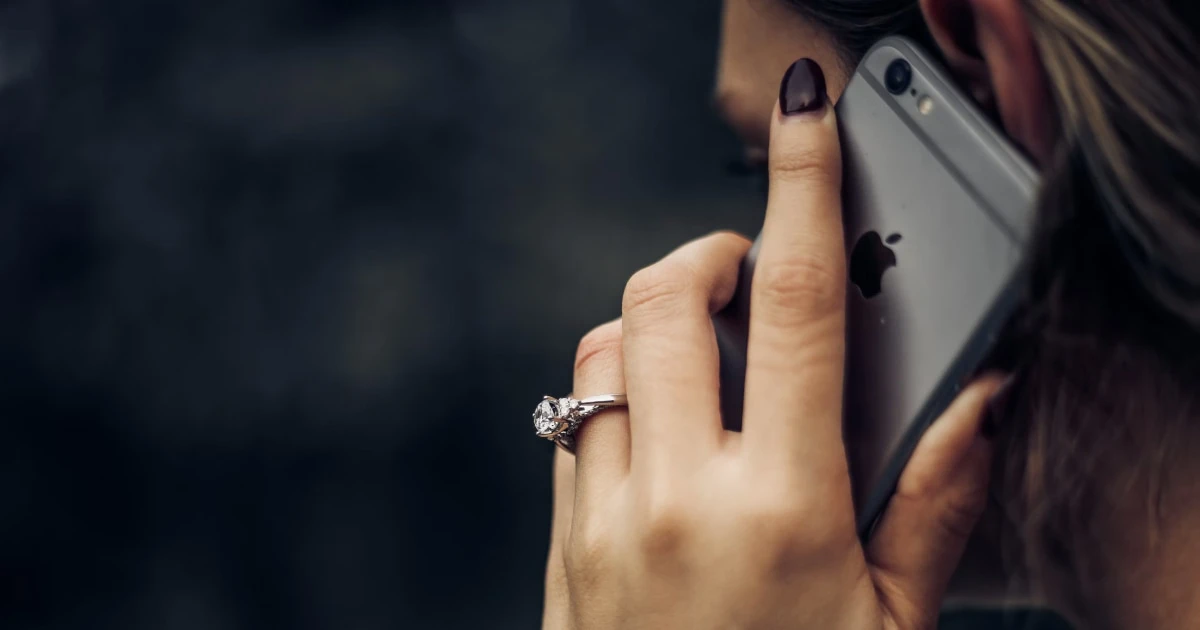
If people sound faint or distant during phone calls on your iPhone, but music and videos play at a normal volume, the problem is rarely your main loudspeaker.
iPhones utilize completely separate audio pathways for media and voice communication. When you hold your phone to your ear during a cellular conversation, audio routes through the small earpiece receiver at the top of the screen, whereas music plays through the primary bottom loudspeaker.
Why is your iPhone call speaker so quiet?
Isolating the issue requires understanding why the earpiece behaves differently than your media speakers:
- Independent Volume Controls: iOS maintains distinct volume levels for media playback and active phone calls. Adjusting your volume while listening to music does not change your in-call volume.
- Obstructed Earpiece Mesh: Pocket lint, dust, and facial oils frequently clog the narrow earpiece slot, dampening voice frequencies while leaving open media speakers unaffected.
- Audio Routing Glitches: Active calls can accidentally misroute audio to hidden Bluetooth accessories or accessibility channels.
- Hardware Failure: Drops or liquid exposure can physically damage or displace the internal earpiece driver.
How to fix a quiet iPhone earpiece step-by-step
Work through these targeted diagnostic checks to restore normal call volume:
Step 1: Adjust volume during an active call
Because iOS separates media and call volumes, you must change the level while a call is currently connected.
- Place or answer an active phone call.
- Press the Physical Volume Up button on the side of your iPhone until the call volume indicator reaches maximum.
- Verification: Ask the caller if their voice sounds noticeably louder and clearer.
Step 2: Compare earpiece audio with speakerphone
Testing output routing helps determine if the issue is limited to the earpiece hardware or system-wide.
- While on an active call, tap the Speaker button on the call interface.
- Listen closely to whether the voice output becomes loud and clear through the main bottom speaker.
- Verification: If speakerphone sounds completely normal but holding the phone to your ear sounds faint, the issue is isolated to the earpiece receiver or its exterior mesh.
Step 3: Inspect and clean the earpiece receiver
Fine debris can completely block high-frequency voice audio over time.
- Examine the narrow earpiece slot at the very top of your iPhone screen under a bright light.
- Check if a thick screen protector overlaps or covers the opening.
- Gently brush away surface dust using a clean, dry, ultra-soft bristle brush, moving strictly parallel to the mesh without applying pressure. Never insert pins, needles, or compressed air.
- Verification: Play a voice memo or test call to check if audio output improves once the grille is clear.
Step 4: Disconnect Bluetooth devices and check audio routing
Ensure your call isn’t transmitting to a disconnected or nearby wireless headset.
- Open the Control Center and check the active audio output icon on the media player widget.
- Turn off Bluetooth temporarily in Settings to force audio back to internal device speakers.
- Verification: Make a test call to confirm audio routes directly through the handset.
Can Fix My Speakers fix a quiet iPhone earpiece?
Fix My Speakers provides sound utilities and frequency tone generators designed to test overall speaker channels and help push out surface moisture.
However, sound waves cannot dissolve compacted pocket lint trapped inside a narrow earpiece mesh, nor can they repair broken internal hardware. If physical cleaning and volume adjustments do not resolve the issue, Fix My Speakers can help verify your main loudspeaker functionality, but professional evaluation may be necessary.
When to contact Apple Support
If your earpiece remains faint or distorted at maximum volume after clearing surface debris and testing audio routes, physical hardware damage may be present. Contact Apple Support or visit an authorized service provider for a professional diagnostic inspection.
Frequently asked questions
- Why is my iPhone call volume low when music sounds normal?
- Phone calls and music use different audio outputs. Calls held to your ear use the earpiece receiver at the top of the screen, while music plays through the main bottom loudspeaker.
- How do I make my iPhone louder during a call?
- While actively on a call, press the Physical Volume Up button on the side of your iPhone to raise the dedicated call volume level.
- Can dust make an iPhone earpiece quiet?
- Yes. Accumulated pocket lint or debris over the narrow receiver mesh can physically block sound output, making callers sound faint or distant.
- Why can I hear music but not the person on a call?
- Your music uses the media speaker while phone calls route through the earpiece receiver. If the earpiece is blocked or misconfigured, call audio will fail while media playback remains fine.
- Can Fix My Speakers fix a quiet iPhone earpiece?
- Fix My Speakers offers sound utilities for general audio testing, but it cannot repair hardware faults or clear dense physical lint from a blocked earpiece mesh.
- Should I repair my iPhone if the earpiece is still quiet?
- If call volume remains faint after maximizing call volume, clearing debris, and testing speakerphone, contact Apple Support for hardware evaluation.
Get Fix My Speakers on the App Store
Restore your phone speaker clarity today
Eject trapped water with acoustic sound waves, run automated water-removal cycles, and test audio output using precision frequency generators. Free to download for iPhone and iPad. Results vary; sound-based tools cannot guarantee water removal or repair damaged hardware.

Keep reading
How to Clean Dust Out of a Phone Speaker
Learn how to remove dust from your phone speaker safely, which cleaning methods to avoid, and when a speaker cleaning app can help.
Why Is My Phone Speaker Crackling or Buzzing?
Is your phone speaker crackling, buzzing, or making distorted sounds? Learn the common causes, how to troubleshoot the problem, and how to test your speaker.
Why Does My Phone Speaker Sound Muffled? Causes and Fixes
Is your phone speaker muffled? Learn the common causes, how to troubleshoot blocked grilles and moisture, and how Fix My Speakers can help with certain speaker issues.