

Why Is My Phone Speaker Not Working?
Is your phone speaker not producing any sound? Learn how to troubleshoot muted audio, connection issues, software problems, and possible speaker damage.
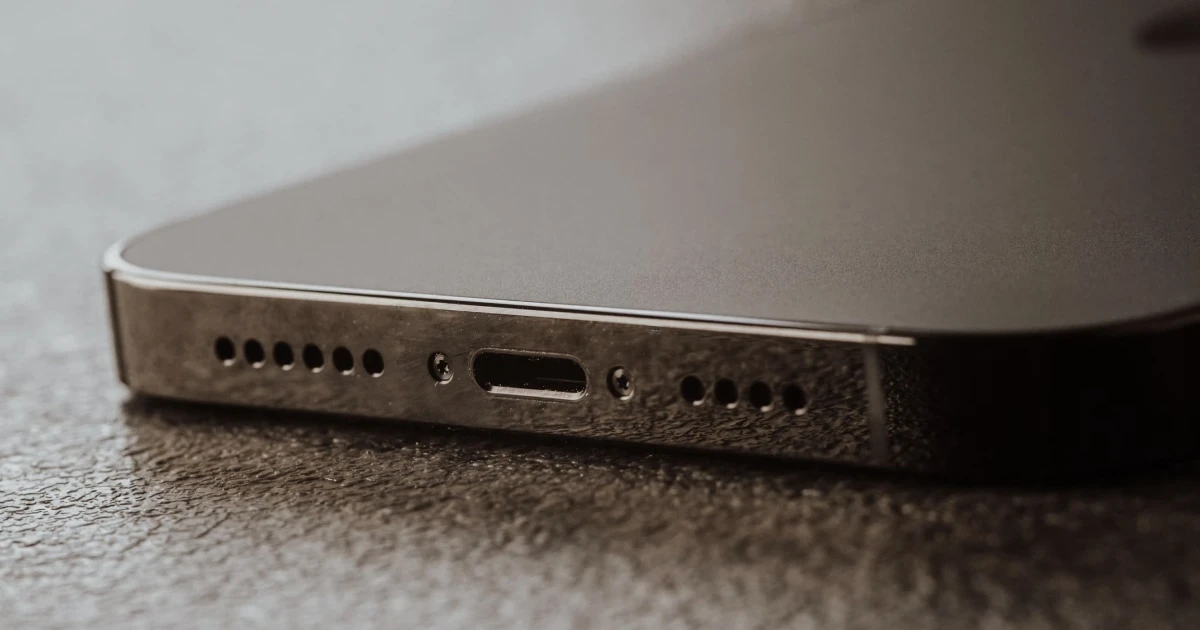
When a smartphone speaker suddenly goes completely silent, it can instantly disrupt phone calls, alarms, media playback, and notifications. While total audio loss seems like an immediate hardware failure, it is frequently triggered by simple software glitches, accidental mute settings, or background Bluetooth connections.
Before assuming your speaker driver is dead, work through a systematic diagnostic process to isolate software configuration issues from actual hardware failure.
1. Check separate iOS/Android volume channels
Smartphones manage media playback, call audio, system alarms, and notifications on completely independent volume channels. Turning up your ringtone volume does not automatically raise media playback volume.
What to check:
- Open your device Settings and navigate to Sounds & Haptics (or Sound & Vibration).
- Drag all volume sliders (Media, Ringtone, Notifications, Alarms) to high.
- Verify that Do Not Disturb, Focus Modes, or the physical Silent/Mute Switch on the side of your phone are turned off.
2. Disconnect hidden Bluetooth audio devices
One of the most common causes of a “broken” speaker is audio secretly playing through a connected Bluetooth device—such as wireless earbuds resting in a pocket, a nearby smart speaker, or a car infotainment system.
What to check:
- Swipe down to open Control Center (or Quick Settings).
- Turn off Bluetooth completely to force all audio output back to the handset’s internal speakers.
- Tap the media playback output icon and manually choose iPhone / Phone Speaker as the active destination.
3. Test multiple apps and system sounds
If one specific app is completely silent, the issue may be isolated to that software rather than your phone’s audio pipeline.
What to check:
- Play a video in Safari or YouTube.
- Navigate to Settings and preview a default system ringtone.
- Record a short voice memo and play it back.
If system ringtones and local voice memos play clearly, but streaming apps remain silent, update or reinstall the affected app. If all sources remain silent, proceed down the checklist.
4. Differentiate between the earpiece and bottom loudspeaker
Smartphones feature two distinct speaker systems: the top earpiece receiver (for private calls) and the primary bottom loudspeaker (for media, speakerphone, and ringtones).
What to check:
- Media is silent, but calls work: Focus troubleshooting on the bottom speaker grille.
- Calls are silent, but media plays normally: The issue is isolated to the top earpiece. Read our guide on why an iPhone call speaker is quiet while music sounds normal.
- Both are silent: A system-wide audio processing bug or main logic board fault is probable.
5. Reboot your smartphone
A frozen core audio service or app memory leak can crash the phone’s sound server. Performing a full system restart re-initializes internal audio drivers and clears temporary buffer crashes.
Turn off your device, wait 30 seconds, power it back on, and test a system ringtone immediately upon startup.
6. Inspect speaker grilles for total blockages
A thick, misaligned phone case, a newly applied screen protector, or dense pocket lint can smother acoustic output.
Remove your phone case completely and examine the speaker cutouts under bright lighting. If dirty, brush the exterior gently with a dry, ultra-soft bristle brush. Never insert metal pins or pour liquids into the ports.
If your device recently encountered water, review our guide on handling water in phone speakers.
7. Identify signs of permanent hardware failure
If your phone speaker remains silent after verifying settings, disconnecting Bluetooth, testing system ringtones, and restarting, evaluate whether physical damage occurred:
- Did the silence begin immediately after a drop or hard impact?
- Did the device suffer significant liquid submersion or salt water exposure?
- Did you hear loud metallic popping or screeching before the speaker failed?
Apple device owners can review official diagnostic guidance through Apple’s support article on speaker audio issues.
Can a speaker utility app help fix a silent speaker?
A sound utility app requires a working speaker driver to output sound waves. If your speaker driver is physically blown or electrically disconnected, software cannot resurrect it.
However, sound utilities are invaluable for diagnostic verification and testing:
- Acoustic Channel Verification: Playing clean reference tones helps confirm whether audio output is partially working or entirely dead.
- Surface Moisture Ejection: If your speaker went silent after liquid exposure, running low-frequency pulse cycles can dislodge water droplets clogging the acoustic mesh.
With Fix My Speakers, you get instant access to clean frequency sweeps, stereo speaker diagnostics, and automated 165 Hz water eject tools to test and clear your device audio.
Learn more by exploring our master guide on how to test if your phone speaker is working properly.
When to seek professional repair
If your built-in speaker remains silent across every app, test tone, and call scenario after a full system reboot, contact the device manufacturer or an authorized service
Frequently asked questions
- Why is my phone speaker not producing any sound?
- Complete silence is usually caused by muted audio channels, active Bluetooth connections to hidden devices, software audio buffer crashes, or physical speaker hardware damage.
- How can I tell if my phone speaker is physically broken?
- If your speaker remains silent across all apps and system sounds after restarting, turning off Bluetooth, and setting volume to maximum, a hardware fault is likely present.
- Can a speaker utility app fix a silent phone speaker?
- An app can help test audio channels and clear surface moisture, but it cannot fix a blown speaker driver, disconnected internal cable, or silent hardware failure.
- What should I do if my phone speaker suddenly stops working?
- Check silent mode switches, disconnect Bluetooth accessories, test system ringtones, restart your device, and inspect audio ports before seeking professional repair.
Get Fix My Speakers on the App Store
Restore your phone speaker clarity today
Eject trapped water with acoustic sound waves, run automated water-removal cycles, and test audio output using precision frequency generators. Free to download for iPhone and iPad. Results vary; sound-based tools cannot guarantee water removal or repair damaged hardware.

Keep reading
Why Is My iPhone Call Speaker Quiet but Music Sounds Normal?
Can barely hear calls on your iPhone, even though music sounds fine? Learn how to troubleshoot a quiet earpiece, check audio settings, and test your speaker.
Why Is My Phone Speaker Crackling or Buzzing?
Is your phone speaker crackling, buzzing, or making distorted sounds? Learn the common causes, how to troubleshoot the problem, and how to test your speaker.
Phone Speaker Too Quiet at Maximum Volume? Causes and Fixes
Is your phone speaker too quiet even at maximum volume? Discover common causes, practical troubleshooting steps, and how Fix My Speakers can help you test your phone's sound.